Why Does Google Chrome Keep Redirecting Me? How to Stop Pop-Ups, Redirects, and Fake Virus Alerts
From the Synergy Tech Repair article archive.
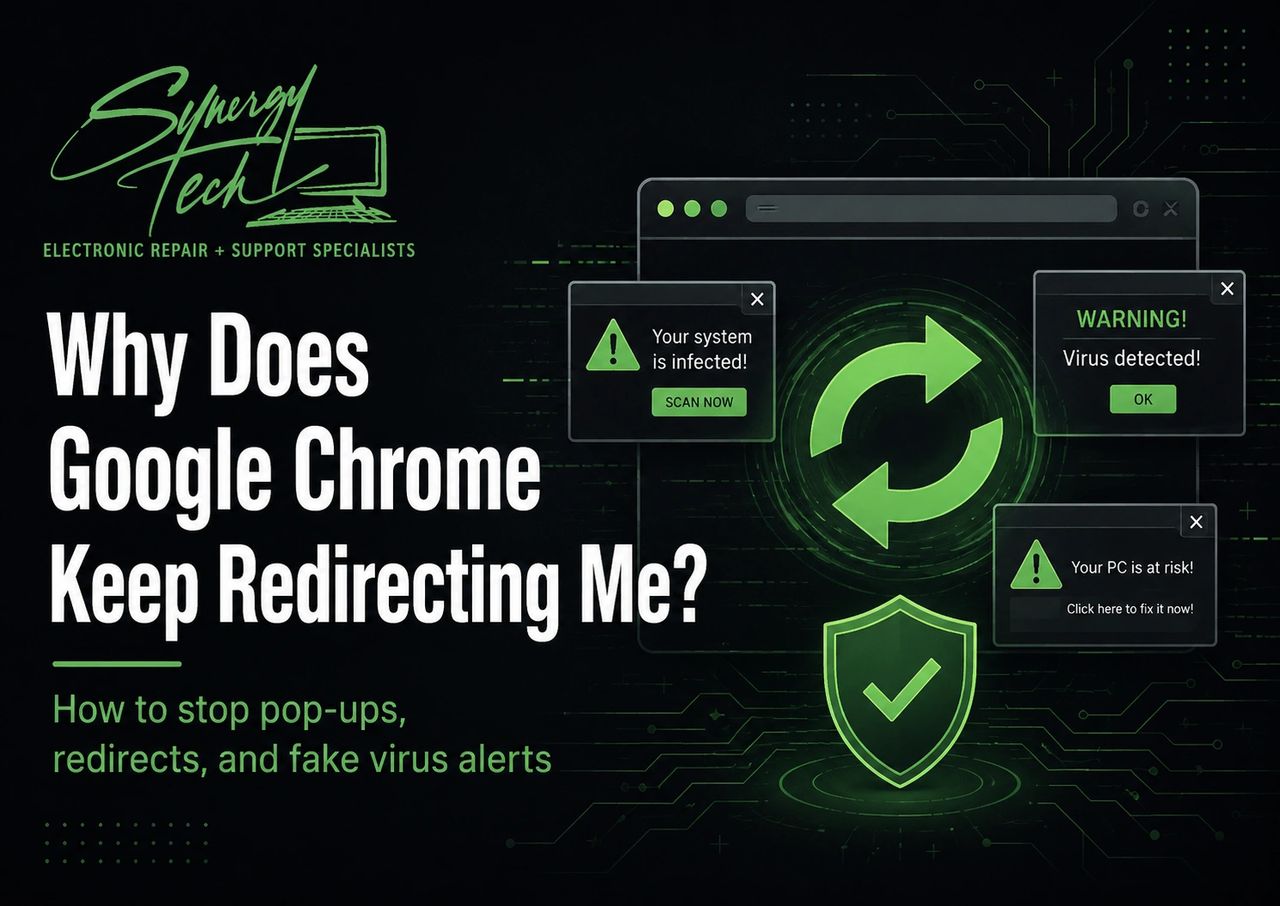
Few things are more frustrating—or alarming—than opening Google Chrome and suddenly being sent to unfamiliar websites, flooded with pop-ups, or shown a warning claiming your computer has a virus.
The good news is that a redirect does not automatically mean your computer has been hacked. Sometimes the problem is a website permission or browser setting. Other times, redirects can be caused by a suspicious extension, unwanted software, adware, or malware.
Google lists persistent pop-ups, unexpected homepage or search-engine changes, unfamiliar extensions that keep returning, browsing redirects, and fake virus alerts as possible signs of unwanted software.
Here is how to determine what is happening and what you can safely do next.
Common Reasons Chrome Keeps Redirecting You
1. A Website Was Allowed to Send Notifications
Some websites display a message asking you to click Allow before continuing. Unfortunately, clicking Allow may give that website permission to send advertisements, fake security warnings, and other unwanted notifications.
These notifications may appear even when you are not actively visiting the website. They can look like legitimate antivirus alerts, but clicking them may send you to suspicious pages.
2. Pop-Ups and Redirects Were Allowed
Chrome normally blocks many automatic pop-ups, but individual websites can be added to an allowed list. Once permission is granted, that website may open additional tabs or redirect you elsewhere.
Google notes that continued pop-ups can also be connected to previously approved website notifications or malware on the device.
3. An Unwanted Browser Extension Was Installed
Chrome extensions can add useful features, but unsafe or poorly designed extensions may:
- Change your search engine
- Redirect searches
- Insert advertisements
- Track browsing activity
- Reappear after being removed
- Change your homepage or new-tab page
An extension should be removed if you do not recognize it, no longer use it, or do not remember installing it.
4. The Computer Has Adware or Malware
If redirects happen across several websites—or return after you change Chrome’s settings—the problem may be outside the browser itself.
Unwanted software may alter Chrome’s settings, install extensions, display advertisements, or redirect searches. A fake virus alert may also encourage you to call a phone number, purchase unnecessary software, or allow remote access to your computer.
Do not call a phone number shown in a browser virus warning. Close the page instead.
How to Stop Pop-Ups and Redirects in Chrome
On a Windows PC or Mac:
- Open Google Chrome.
- Click the three dots in the upper-right corner.
- Select Settings.
- Select Privacy and security.
- Open Site settings.
- Select Pop-ups and redirects.
- Choose Don’t allow sites to send pop-ups or use redirects.
- Review the websites under the allowed section and remove anything unfamiliar.
Google currently directs computer users to Settings → Privacy and security → Site settings → Pop-ups and redirects to control this permission.
Remove Suspicious Notification Permissions
Next, check which websites are allowed to send notifications:
- Open Chrome’s Settings.
- Select Privacy and security.
- Choose Site settings.
- Select Notifications.
- Review the allowed websites.
- Remove or block anything you do not recognize or trust.
Chrome allows users to change website notification permissions at any time, and it may automatically block sites known for intrusive or misleading notifications.
Check Your Chrome Extensions
To review installed extensions:
- Click the three dots in Chrome.
- Select Extensions.
- Choose Manage extensions.
- Remove anything unfamiliar or unnecessary.
Be especially cautious with extensions claiming to provide free coupons, search enhancements, video downloading, computer cleaning, or security scanning.
Removing the wrong extension normally will not damage Chrome, but you may lose a feature associated with that extension.
Reset Chrome’s Settings
When the problem continues, Chrome can be returned to its original settings:
- Open Settings.
- Select Reset settings.
- Choose Restore settings to their original defaults.
- Confirm the reset.
Google states that a reset may require you to turn trusted extensions back on afterward.
Resetting Chrome does not usually erase your saved bookmarks or passwords, but it may reset your startup page, search engine, pinned tabs, permissions, cookies, and extensions.
Check the Computer for Unwanted Programs
Browser settings may not solve the problem when unwanted software has been installed on the computer.
On Windows, review Settings → Apps → Installed apps. On a Mac, check the Applications folder. Remove programs you do not recognize, particularly anything installed around the time the redirects began. Google also recommends checking the computer for unwanted programs before or alongside resetting browser settings.
Do not randomly uninstall system components or programs you are unsure about. When in doubt, have the computer professionally inspected.
When Should You Ask for Professional Help?
Professional browser and security cleanup may be needed when:
- Redirects return after Chrome is reset
- Strange extensions reinstall themselves
- Your homepage or search engine keeps changing
- Fake virus warnings continue appearing
- Someone was given remote access to the computer
- Passwords or financial information may have been entered
- The computer has become unusually slow
- You are unsure which programs are safe to remove
A proper cleanup should include more than simply blocking pop-ups. The computer should be checked for unwanted programs, remote-access software, malicious extensions, altered browser permissions, and other security concerns.
Local Virus and Browser Cleanup from Synergy Tech Repair
Synergy Tech Repair provides professional virus removal, malware cleanup, browser repair, security checks, and computer support in Lebanon, Oregon and Santa Fe, New Mexico.
We can help remove suspicious software, stop browser redirects, correct altered browser settings, and make sure unwanted remote-access tools are not left behind.
Do not keep clicking through fake warnings or give an unknown caller access to your computer. Close the page and ask for help.
Contact Synergy Tech Repair to schedule an evaluation or learn more about our computer security and malware-removal services.